Install phoscon in docker on Raspberry Pi

posted in: Uncategorized

To connect the Conbee II to a Raspberry Pi we need to install the deCONZ phoscon gateway web UI to connect to zigbee devices.

After installing Docker on Raspberry Pi and installing Home Bridge in Docker, we can configure phoscon.

Grant the proper permissions to the pi user

sudo usermod -a -G dialout $USER

Create directory for the docker configuration

mkdir /home/pi/deconz
mkdir /home/pi/deconz/opt

Create the docker-compose yaml file /home/pi/deconz/docker-compose.yml with the following contents

version: "2"
services:
  deconz:
    image: marthoc/deconz
    container_name: deconz
    network_mode: host
    restart: always
    volumes:
      - /opt/deconz:/root/.local/share/dresden-elektronik/deCONZ
    devices:
      - /dev/ttyACM0
    environment:
      - DECONZ_WEB_PORT=8080
      - DECONZ_WS_PORT=8443
      - DEBUG_INFO=1
      - DEBUG_APS=0
      - DEBUG_ZCL=0
      - DEBUG_ZDP=0
      - DEBUG_OTAU=0

The device path above is for the Conbee II, the original Conbee (/dev/ttyUSB0) and the Raspbee (/dev/ttyAMA0)use different paths.

Plug in the Conbee II to a USB extension then into the Raspberry Pi.

Start docker by running

cd /home/pi/deconz
docker-compose up -d

You can now access phoscon at http://raspberrypi.local:8080
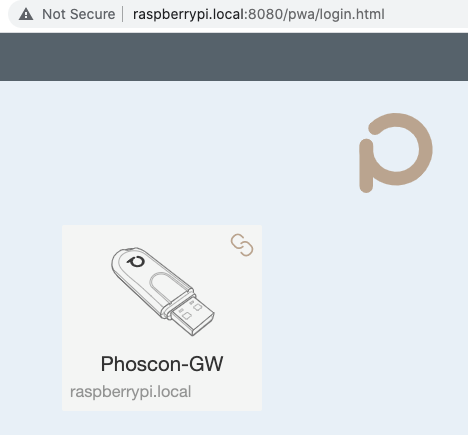
Skip the option to create a new lamp and to create a first group.

Change timezone under Settings > Gateway > Advanced

Add new devices under devices (Light, Switch, Sensor) and click the Add new button

Connect phoscon to homebridge

In homebridge, add new plugin homebridge-hue

Under settings, add the new bridge at localhost:8080
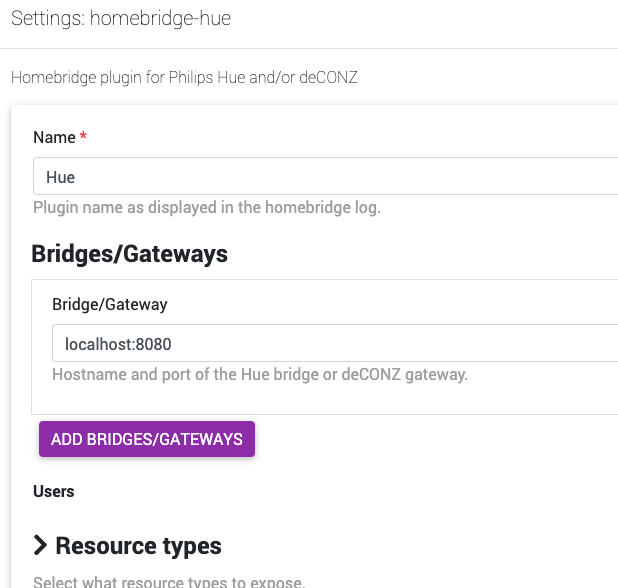
Under Resource Types, select the types of devices you want to show in Home Kit (lights, switches, sensors, etc)

Save these settings

Set the homebridge-hue plugin to start as a child bridge. This will consume a little more memory, but will isolate this plugin from other homebridge plugins.

Select the wrench icon, then Bridge Settings, and enable as child bridge
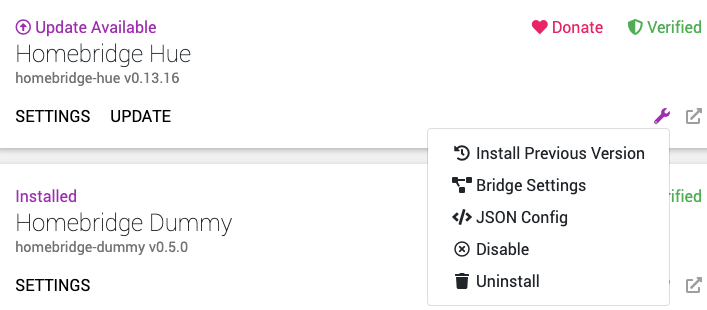
Restart homebridge to apply the new plugin and settings.

As homebridge is restarting, you will see a message that a new user was created

"platforms": [
    {
      "platform": "Hue",
      "users": {
        "0000000000000000": "0000000000"
      }

Copy this user and add to the bottom of the json config of the homebridge-hue plugin
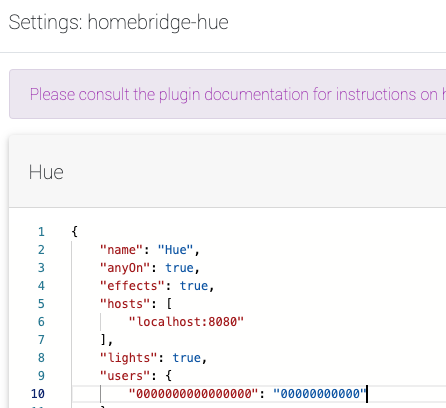
You should now see your devices in Home Bridge.

To add the homebridge-hue plugin to Home Kit, select the wrench icon > Bridge Settings > use this QR code to add the bridge in the Home app on your phone.

Run Homebridge in Docker on Raspberry Pi

posted in: Uncategorized

This is part of a multi part series of how to connect zigbee devices to Home Kit using HomeBridge Conbee II, deCONZ and phoscon.

After first configuring Raspberry Pi OS and installing docker, we can now setup our Home Bridge in a docker container.

Find the user ID of the pi user

id pi

This will likely be the default of uid=1000 and gid=1000

Make a folder for the docker config

mkdir /home/pi/homebridge

Edit the docker compose yaml file

vi /home/pi/homebridge/docker-compose.yml

Modify the below with a unique UUID if needed

version: '2'

services:
  homebridge:
    image: oznu/homebridge:raspberry-pi
    restart: unless-stopped
    network_mode: host
    volumes:
      - ./config:/homebridge
    environment:
      - PGID=1000
      - PUID=1000
      - HOMEBRIDGE_CONFIG_UI=1
      - HOMEBRIDGE_CONFIG_UI_PORT=80

Install homebridge in a docker container

In the same folder as the docker-compose.yml configuration file, run docker-compose

cd /home/pi/homebridge
docker-compose up -d

This will download the docker files and install them, and will display done when complete.

To see the container run

docker ps

If everything is running, you can now access homekit at http://raspberrypi.local

Default homekit credentials are:

Username:admin
Password: admin

You can now configure homebridge, restore a backed up homebridge configuration, or move on to configuring Conbee II with phoscon in docker.

Install Homebridge in Docker on Raspberry Pi

posted in: Uncategorized

I am running Docker on my Raspberry Pi to run Homebridge and phoscon which allows me to connect zigbee devices like Aqara water sensor to Home Kit.

This is part one of several instructions to get zigbee running with Home Kit.

This could be done without Docker by installing everything in Raspberian, but putting it in Docker containers allows me to keep things separate which will simplify maintenance and upgrades in the future.

Install the OS

I downloaded the Raspberry Pi OS Lite image, and transferred to the SD card from my desktop using dd.

After copying the image to the SD card, I enabled ssh by creating an ssh file in the root of the volume

touch ssh

I put the SD card in the Pi, connect ethernet, booted up, then ssh into the Pi

ssh pi@[ip address]

The default password is raspberry

I change the password, and set time zone using

sudo raspi-config

I use a static IP on my Raspberry Pi by editing etc/dhcpdc.conf and uncommenting the static ip settings

Allow accessing the server using [hostname].local

sudo apt-get install avahi-utils

Update the OS

sudo apt-get update && sudo apt-get upgrade

Install docker on Raspberry Pi

Install Docker

curl -sSL https://get.docker.com | sh

Add pi user to the Docker Group so I can run docker without root.

sudo usermod -aG docker ${USER}

Install Docker-Compose

sudo apt-get install -y libffi-dev libssl-dev
sudo apt-get install -y python3-dev
sudo apt-get install -y python3 python3-pip
sudo pip3 install docker-compose

Set docker to start on boot

sudo systemctl enable docker

Docker is now installed, and we can continue on to building the Homebridge docker container and the phoscon docker container